Painter v1
🖌️ PAINTER – Complete User Guide
Welcome to PAINTER, a retro-style drawing program with layers, effects, and multiple tools.
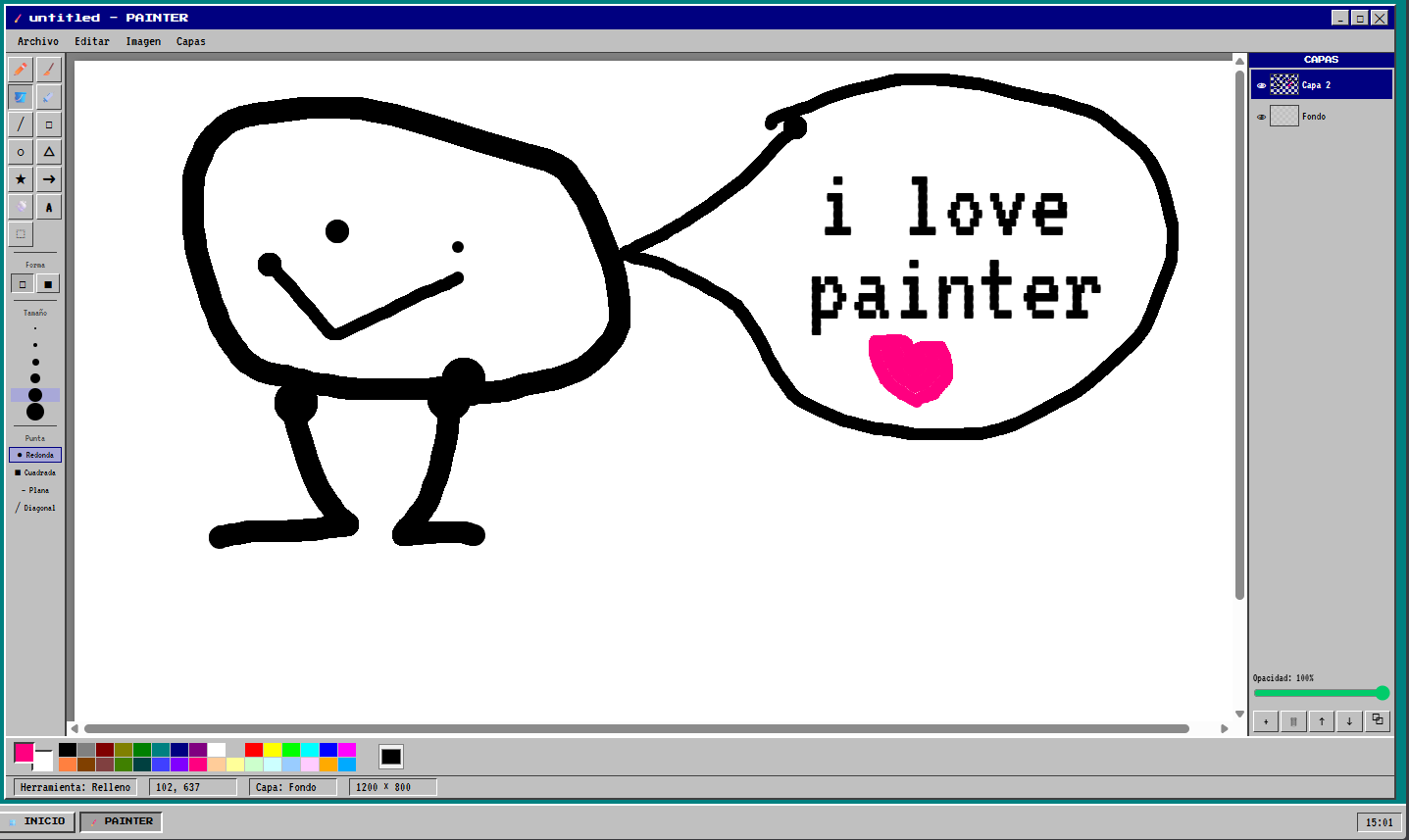
🖥️ Interface Overview
The screen is divided into:
-
Top Bar → Window title
-
Menu Bar → File, Edit, Image, Layers
-
Toolbox (Left) → Drawing tools
-
Canvas (Center) → Where you draw
-
Layers Panel (Right) → Manage layers
-
Color Palette (Bottom) → Choose colors
-
Status Bar → Shows tool, position, layer, size
🎨 Drawing Tools (Left Panel)
✏️ Pencil (P)
Draw freehand lines.
-
Uses foreground color.
-
Size and tip shape affect the stroke.
🧹 Eraser (E)
Erases using background color.
-
Erases faster with bigger brush sizes.
🪣 Fill (F)
Flood fills an area with the selected color.
-
Click inside a closed area to fill it.
💉 Color Picker (I)
Picks a color from the canvas.
-
Left click → sets foreground color.
-
Right click → sets background color.
╱ Line (L)
Draws a straight line.
-
Click and drag.
□ Rectangle (R)
Draws rectangles.
-
Use Outline or Solid mode.
○ Ellipse (C)
Draws circles and ellipses.
-
Click and drag.
△ Triangle (T)
Draws a triangle shape.
★ Star (S)
Draws a 5-point star.
➜ Arrow (A)
Draws an arrow with an arrowhead.
💨 Spray (X)
Creates a spray-paint effect.
-
Hold mouse button to spray continuously.
A Text (W)
Adds text to the canvas.
-
Click to start typing.
-
Press Enter to confirm.
-
Press Escape to cancel.
-
Font size depends on brush size.
⬚ Selection (V)
Creates a rectangular selection.
-
Click and drag to select an area.
🧰 Shape Options
Fill Mode
-
□ Outline → Border only
-
■ Solid → Filled shape
Brush Size
Choose different brush thicknesses.
Brush Tip
-
● Round
-
■ Square
-
— Flat
-
╱ Diagonal
Each tip changes how strokes look.
🎨 Colors
-
Click a color → sets foreground color.
-
Right click a color → sets background color.
-
Click the two color squares → swap colors.
-
Use the custom color picker to choose any color.
📂 Menu Functions
📁 File
New
Creates a new blank canvas.
Open
Opens an image file.
Save (Ctrl + S)
Saves your drawing as PNG.
Exit
Closes the program.
✏️ Edit
Undo (Ctrl + Z)
Reverts the last action.
Select All
Selects the entire canvas.
Clear Layer
Clears only the active layer.
Clear All
Clears all layers.
🖼️ Image
Flip Horizontal
Flips the active layer horizontally.
Flip Vertical
Flips vertically.
Invert Colors
Reverses all colors.
Grayscale
Converts to black and white.
🗂️ Layers
New Layer
Adds a new layer.
Delete Layer
Removes selected layer.
Duplicate Layer
Creates a copy.
Move Layer Up / Down
Changes layer order.
Flatten Layers
Merges all layers into one.
🗂️ Layers Panel
Each layer has:
-
👁 Visibility toggle
-
Thumbnail preview
-
Name (double-click to rename)
-
Opacity slider (0–100%)
The top layer appears in front.
⌨️ Keyboard Shortcuts
| Key | Tool |
|---|---|
| P | Pencil |
| E | Eraser |
| F | Fill |
| I | Picker |
| L | Line |
| R | Rectangle |
| C | Circle |
| T | Triangle |
| S | Star |
| A | Arrow |
| X | Spray |
| W | Text |
| V | Selection |
| Ctrl + Z | Undo |
| Ctrl + S | Save |
| Ctrl + N | New |
Leave a comment
Log in with itch.io to leave a comment.